
01
Chrome Web Store
Install it in Chrome.
Open SynthID Detector in the Chrome Web Store and select Add to Chrome. Once installed, open Chrome’s extensions menu and pin SynthID Detector if you’d like to keep the selection button within reach.
Setup guide
Install SynthID Detector and sign in to synthid.com. Then you can check an image on the page where you found it and read the result there.
Chrome Web Store
Open SynthID Detector in the Chrome Web Store and select Add to Chrome. Once installed, open Chrome’s extensions menu and pin SynthID Detector if you’d like to keep the selection button within reach.
Google account
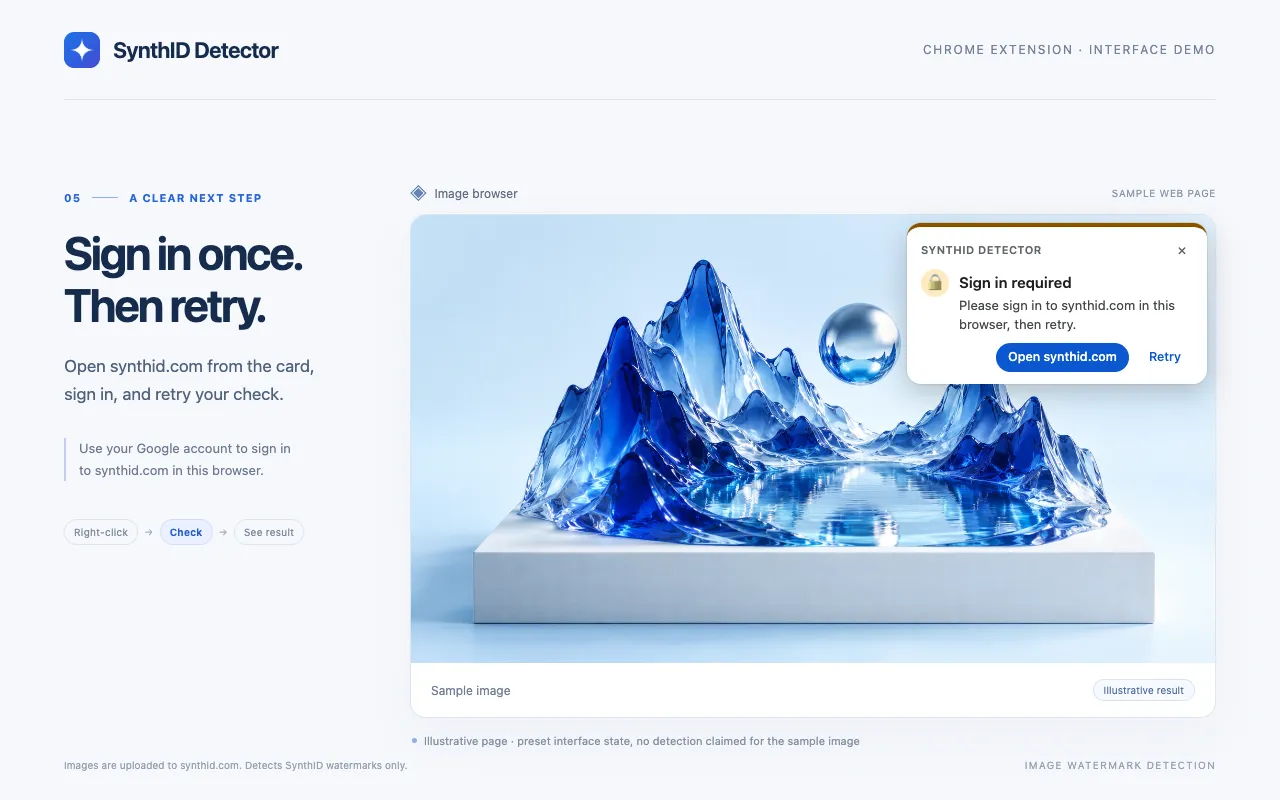
Open synthid.com and sign in with your Google account in the same Chrome profile as the extension. Let the website finish loading before starting a check.
The extension uses that session to submit your selected image to the service. You sign in on synthid.com directly; you do not enter a Google password into the extension.
Two ways to choose
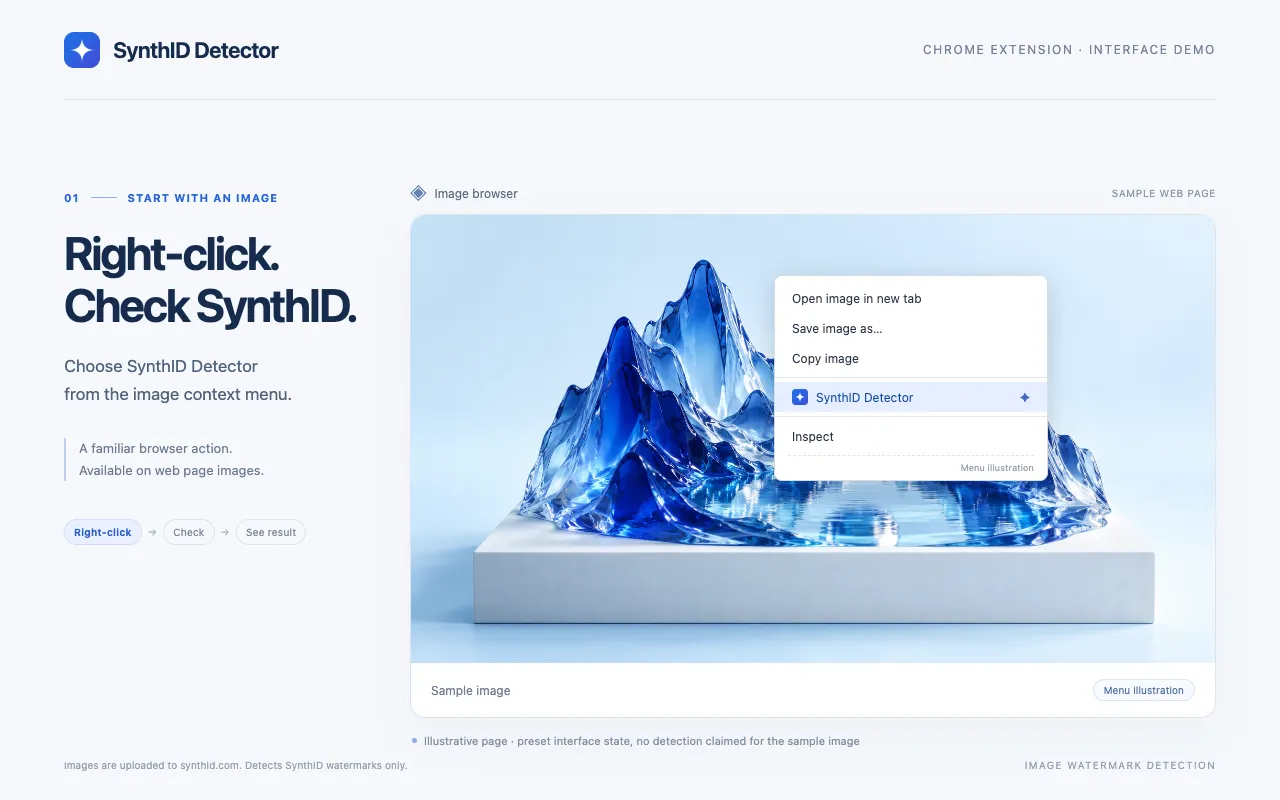
On a supported webpage, right-click an image and choose SynthID Detector. If the site covers it with a transparent layer, try right-clicking the spot where the image appears. The extension looks for the original image underneath when possible.
The right-click command starts the image upload. A floating card shows the check’s progress and then the result beside the image.
Click the extension’s toolbar icon or press Alt + Shift + D. You can change the shortcut in chrome://extensions/shortcuts.

A sample of the result card you would see beside your selection.
Visual demo only. No image is uploaded or checked.
For screenshot checks, only the confirmed region is uploaded. A screenshot of an image shown at a small size may be less reliable than the original. Open a larger view before selecting when possible.
Results
The extension displays the result supplied by synthid.com. It checks for a SynthID watermark; it does not identify every AI-generated image or independently verify the service’s conclusion.
The service found a SynthID watermark. A confidence label is shown when provided by synthid.com.
No SynthID watermark was found. AI generation from a system that does not use SynthID remains possible.
The service reports possible editing or cannot make a clear determination. Read the explanation before drawing a conclusion.
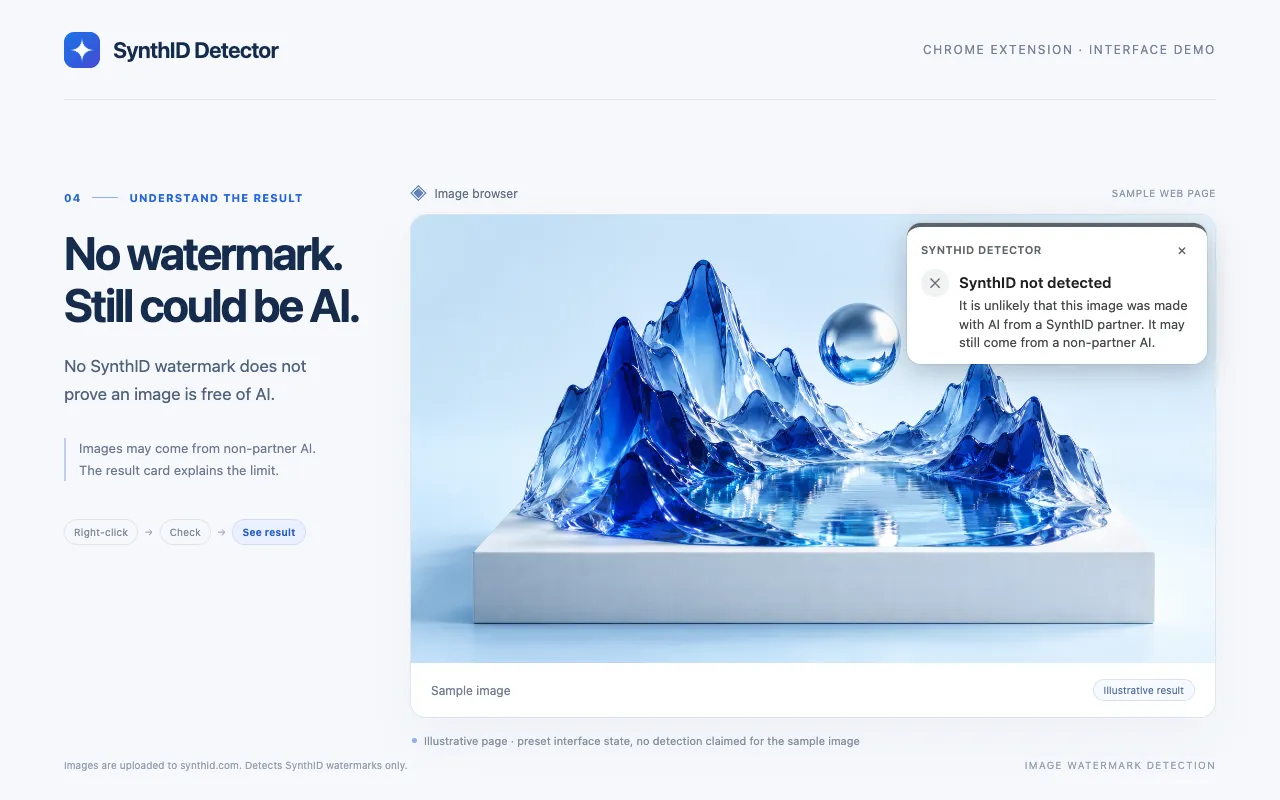
A negative result is not proof of a human-made image. Use the watermark finding alongside the source and context of the image.
Troubleshooting
Most issues come down to the selected image, your sign-in session, or the availability of synthid.com.
Click the extension’s toolbar icon or use Alt+Shift+D to open selection mode. Chrome does not show the image context-menu entry on canvas and video elements. Selection mode lets you click an accessible image or select a visible area instead.
Checks use synthid.com through your existing Chrome session. Sign in directly on synthid.com with a Google account in the same Chrome profile, wait for the site to load, then return to the image and select Retry. You do not enter a Google password into the extension.
Your synthid.com account’s available image-checking quota is used up. Wait until the service makes more quota available. When synthid.com supplies a reset time, the result card shows that information. The extension cannot increase or bypass the quota.
Some image hosts restrict access, and some page images cannot be retrieved. Open selection mode and drag a region to check a screenshot instead. A screenshot of a scaled-down image may be less reliable than the original. Only submit images or areas you are permitted to share with Google.
Common raster images such as JPG, PNG, WebP, GIF, BMP, AVIF, TIFF, HEIC, and HEIF are supported. Other raster formats that Chrome can decode may be converted to PNG. SVG and other vector images are not supported. This version does not check video, audio, or text.
The extension needs an internet connection and access to synthid.com. Checks are processed one at a time. Network delays, service changes, account restrictions, or an unavailable image may prevent a result. If a task times out, wait and select Retry.
Chrome internal pages, the Chrome Web Store, and other pages that prohibit extension access are unsupported. Selection mode cannot directly select an original image inside a cross-origin iframe; you can try right-clicking inside that frame or selecting a screenshot region.